Claude Code Plan Mode: Say No Before Any Code Is Written
What plan mode is, how to turn it on, what each option on the approval screen does, and when to skip it, with a real session captured on Claude Code 2.1.331 and my own numbers.
The most useful thing plan mode gave me was the chance to say no before a single file changed.
Plan mode is a setting in Claude Code where Claude reads your code and writes a plan, but can’t change any file until you say yes. Turn it on by pressing Shift+Tab until the line under the prompt says plan mode on (after a pause sign), or by typing /plan before your request. Use it when a change touches more than one file, or when you don’t know the code well yet.

Free book · 169 pages · PDF + EPUB
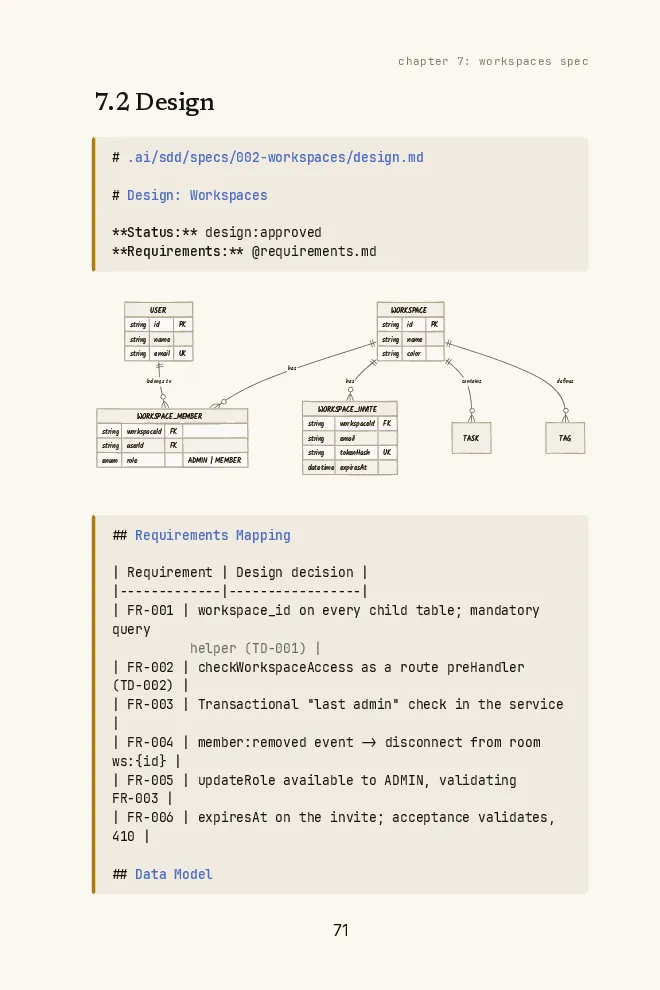
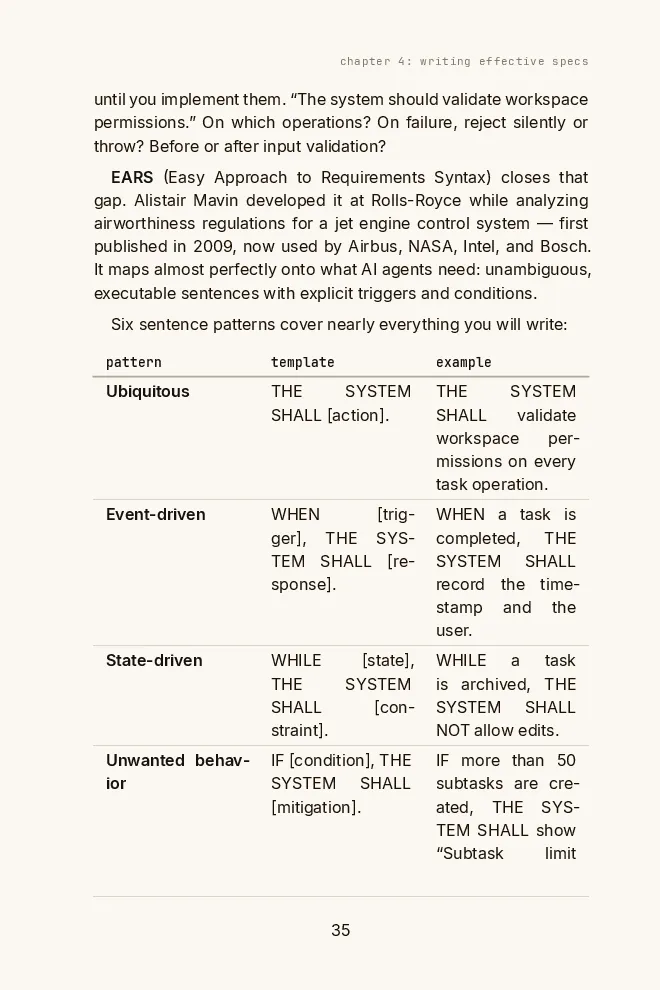
Plan mode's plan stays outside your project, and tomorrow's session starts without it. The free book shows how to keep that plan in the repo, with templates Claude Code reads.
Get the free bookClaude Code can change your files by itself
If you’ve only used ChatGPT or Claude in the browser, this is the part that surprises people. In the browser, the AI writes code and you copy it. Claude Code runs on your machine, inside your project folder. It opens your files, edits them and runs commands in your terminal (your tests, git, npm install).
How much it does before asking you depends on the permission mode: a setting that decides what Claude may do without your OK. You switch between modes with Shift+Tab, and the line under the prompt tells you which one is on.
The permission modes you'll meet first
| Mode | What Claude does without asking | What you'd use it for |
|---|---|---|
| Auto | Most edits and commands. A safety check reviews each action and stops the risky ones. | The starting mode of a new session since version 2.1.283 |
| Manual | Nothing that changes a file or runs a risky command: it asks you first | Seeing every step while you learn |
| Accept edits | Edits files. Commands still ask. | Work you trust, where you review the result |
| Plan | Reads files and runs commands to look around. Can't edit anything. | Deciding what to do before anything changes |
So “plan mode” isn’t Claude being polite. It’s a lock. You can ask any AI for a plan, and it may start editing anyway. In plan mode it can’t, until you approve.
Your first plan, on a real session
I made a small to-do app to show the screens: three files (todo.js, store.js, format.js), a test file and a todos.json with two tasks. The request is the kind you’ll make in week one: add a feature that touches more than one file.
Commands
Open Claude Code in your project folder
claudeAsk in plan mode, without pressing Shift+Tab
/plan Add a way to mark a task as done. Done tasks should still show in the list, crossed out.
Claude read the project and came back in 26 seconds with a plan. This is part of what it wrote, word for word. I ran this session from a script so every word could be captured; a script gets no approval screen, so that one is shown as Anthropic’s docs describe it.
In the terminal
You type
/plan Add a way to mark a task as done. Done tasks should still show in the list, crossed out.Claude answers
# Plan: mark tasks as done

### 1. Data model
- Add an optional `done: true` field to a todo object. Existing entries in `todos.json` have no `done` field, so they read as not done. No migration needed.

### 2. `todo done <n>` command (`todo.js`)
- `n` is the 1-based number shown by `todo list`.
- […] print `No task #<n>.`, set `process.exitCode = 1`, and leave the file alone.

### 3. Strikethrough rendering (`format.js`)
- In `formatList`, wrap the text of done tasks in the ANSI strikethrough code […]

### 4. Tests (`format.test.js`)
- Keep the two existing tests unchanged. […]
- Add a test […]
This is the text of the plan file, trimmed with […]; on your screen the headings show formatted. The full plan names every file it will touch and ends with how it will check the work.
On screen
- Yes, and use auto mode
- Yes, manually approve edits
- No, keep planning
The approval options, worded as in the 2.1.331 docs. Move with the arrow keys and press Enter. The wording shifts a little between versions.
plan mode on
At this point no file had changed. git status was empty. Claude also saved the plan as a Markdown file in ~/.claude/plans/, a folder in your home directory, outside your project. Press Ctrl+G and it opens in your text editor, so you can fix a line yourself before saying yes.
The three options, in plain words
What each answer does
| Option | What happens next | When to pick it |
|---|---|---|
| Yes, and use auto mode | Claude leaves plan mode and builds the plan, deciding most steps without asking | The plan is small and you'll review the result at the end |
| Yes, manually approve edits | Claude builds the plan, but asks before each file change | Your first weeks, or any change you want to watch |
| No, keep planning | Nothing is built. You type what's wrong and Claude writes a new plan | Something in the plan is wrong, or you see a better way |
One trap: on this screen, Shift+Tab doesn’t switch modes, it approves the plan. To leave plan mode without approving, press Esc first, then Shift+Tab.
The first plan is for saying no
The plan above looked fine. It was also wrong for me: strikethrough is a terminal effect, my terminal doesn’t show it, and it vanishes when I paste the list into Slack. So on the approval screen I’d move the arrow to “No, keep planning”, press Enter, and type what’s wrong. Here is the reason I gave and what came back:
On screen
- Yes, and use auto mode
- Yes, manually approve edits
- No, keep planning
Arrow down to the last option and press Enter. Then type the reason.
You type
Don't use strikethrough: my terminal doesn't show it, and it disappears when I paste the list in Slack. Show done tasks as [x] and open ones as [ ], like a checklist.Claude answers
I've changed the plan to use a plain-text checklist instead of strikethrough. Nothing is implemented yet. `todo list` would now look like this:

1. [x] Buy milk
2. [ ] Call the bank

- Display: every task gets [x] if it's done and [ ] if it's open, right after its number. […]
- Tests: the existing "numbers each task" test has to change, because open tasks now show [ ]. […]
It also caught something I hadn't asked about: an existing test would break, so the plan now updates it.
plan mode on
Changing direction cost one message and 31 seconds of waiting. Without plan mode, Claude would have written the strikethrough version and its test, and I’d be reading a diff to undo.
That isn’t a demo trick. It’s what happened in my own work. I went through my Claude Code logs from October 5 to November 23, leaving out anything from my day job:
Plan mode in my own sessions
- sessions where I used plan mode
- 2 of 41
- October 5 to November 23
- plans I turned down
- 4
- before the 2 I approved
- lines of code written
- 0
- while the direction changed
One of them: a change to my e-mail funnel
- 02:14Plan 1 turned down
A fix for contacts stuck in a waiting step.
- 02:20Plan 2 turned down
A different change: a new final step for the funnel.
- 02:24Plan 3 turned down
The same step, revised.
- Done: 02:28Plan 4 approved
14 minutes after the first one. The plan had grown from 7,764 to 13,821 characters.
In both, the first plan was turned down. In the e-mail one, the change itself was replaced between plan 1 and plan 2: a fix became a new step. None of the four versions cost a line of code.
How to say no well: say what’s wrong and what you want instead, in one or two sentences, the way I did above. “Make it better” gets you the same plan in other words.
When to skip plan mode
You don’t need it for everything. Plan mode costs a round trip, and for small changes the plan is longer than the fix.
Use plan mode when
- Required:The change touches more than one fileLike the to-do feature: the command, the display and a test.
- Required:You don't know this code well yetThe plan doubles as a tour: it names the files that matter.
- Required:You can't describe the change in one sentenceThen you don't know what you want yet, and the plan is where you find out.
- Required:The mistake would be expensiveData, money, anything other people use.
- Anti-pattern:A typo, a one-line fix, a renameJust ask. Read the change after.
Why do I use it in only 2 of 41 sessions? I work with claude-sdd-kit, a set of templates and commands for Claude Code from my book, so the plan usually exists as a file in my project before the session starts. That’s the same habit as plan mode, written down where the next session can read it. Plan mode is how you start that habit.
When it doesn’t work
- Shift+Tab does nothing in your terminal: type
/planbefore your request instead. It puts Claude in plan mode and starts on the request. - You’re not sure plan mode is on: start the message with
/plan. It doesn’t depend on the mode line. - VS Code: use the mode selector in the Claude Code panel, or type
/plan. To start every session in plan mode there, setclaudeCode.initialPermissionModeto"plan"in your VS Code user settings. - You want to leave without approving:
Esc, thenShift+Tabuntil the line shows another mode.
Where the plan goes next
The plan lives in ~/.claude/plans/, on your machine, outside your project. Tomorrow’s session doesn’t know it exists, and neither does a teammate. That’s fine for a one-off change.
When the same kind of change keeps coming back, write the plan in the repo instead: what you want, what’s out of scope, and how you’ll check it worked. That file is called a spec, and it’s what spec-driven development with Claude Code is built on. How to write a spec shows the difference on a real feature.
Free book · 169 pages · PDF + EPUB
Plan mode lets you fix the plan before the code. The free book shows how to write that plan in your repo, with templates Claude Code reads.
Claude Code plan mode, quick answers
How do I turn on plan mode in Claude Code?
Press Shift+Tab until the line under the prompt says plan mode on, or start your message with /plan. To open a whole session in plan mode, run claude --permission-mode plan.
How do I exit plan mode?
Approve the plan, or press Shift+Tab to move to another mode. If the approval screen is open, press Esc first: there, Shift+Tab approves the plan.
Does plan mode cost more?
Not by itself. There's no separate charge: planning uses tokens (the units Claude Code's usage is counted in) like any other message. My demo plan cost US$ 0.16.
One setting changes the math: if you pick the opusplan model, Claude plans with Opus, Anthropic's larger model, and builds with Sonnet. Planning then costs more per token.
What's the difference between plan mode and asking Claude for a plan?
If you just ask, Claude may plan and then start editing. In plan mode, editing is blocked until you approve. The plan is also saved as a file you can open with Ctrl+G.
Can I make plan mode the default?
Yes. In the terminal, set permissions.defaultMode to "plan" in .claude/settings.json (one project) or ~/.claude/settings.json (every project). The VS Code extension ignores that and reads claudeCode.initialPermissionMode from your VS Code user settings.
Is plan mode going away?
Nothing official says so. In October, a MindStudio post (opens in a new tab) relayed comments from people on the Claude Code team suggesting it may not stay a separate mode as models get better at planning by themselves. In 2.1.331 it's there, documented, and still getting fixes. The habit stays useful either way: make the agent say what it will do, and decide before it does it.
Plan mode or auto mode?
They answer different questions. Plan mode decides what to do before anything changes. Auto mode decides how much Claude may do without asking while it works. A common pattern is plan mode first, then approve with auto mode.
Free book · 169 pages · PDF + EPUB
You saw plan mode catch a wrong turn before any code. The free book keeps that plan in your repo, so every Claude Code session starts from it.
Get the free book